LiteBokz.js
A Lightbox That's Actually Light.

Fast & Light Image Viewer

LiteBokz.js is a modern, clean and minimal JavaScript library for viewing images. You can embed it into any HTML website for instant image previewing.

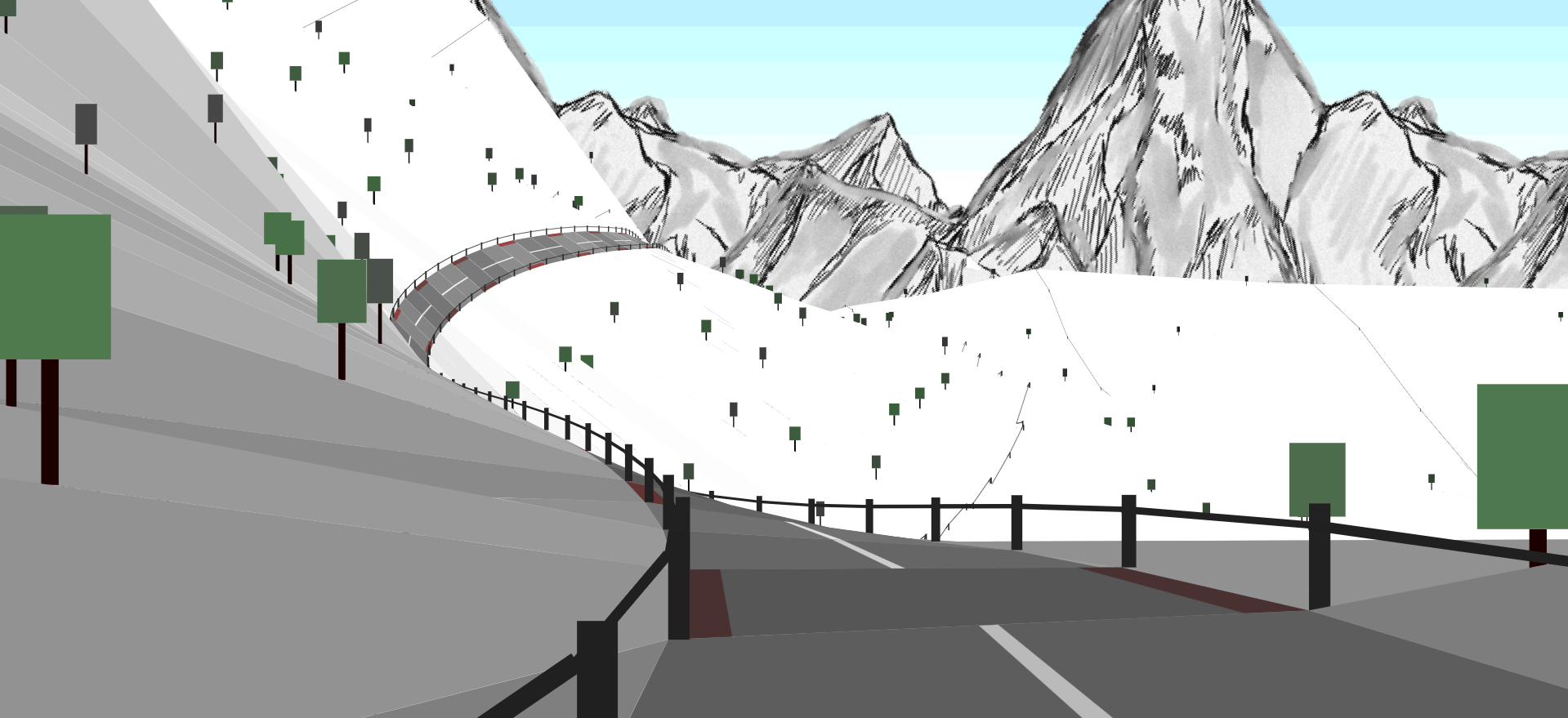
A vectorized image of a road & mountains during sunset.

All Light, no Load

Designed as an alternative to other popular JavaScript lightbox libraries, LiteBokz.js excels in instant loading speeds, advanced customization & zero setup.

Use it instantly by linking the script, or download it on GitHub.

Contribute on GitHub
consider dropping us a star!

How it works

1

Link to LiteBokz.js

LiteBokz.js requires no download. Just insert the following code inside the <head> element.

<script src="https://litebokz.github.io/litebokz/litebokz.js"></script>
2

Choose your images

Just add the "litebokz" class to any image for instant results.

3

Customize your LiteBokz

LightBokz has been built with full customization in mind. From creating color themes to organizing the UI, we've achieved maximum flexibility with minimal code.

Example gallery

Why Choose LiteBokz

Lightweight & mobile friendly

Perfectly scales to any screen size & layout.

Fully customizable

Easily add your own color themes, choose how images should be displayed, and much more.

Free & open source

Litebokz is an open source project built for developers looking for an efficient & minimal way to display their images. Feature suggestions & improvements are open for discussion on our GitHub.

Guide

• Organize images using the name data attribute. This prevents users from being able to navigate between separate categories.

<img class="litebokz" data-lb-name="gamedev-category" src="road.png">
<img class="litebokz" data-lb-name="pixel-art" src="sun.png">
<img class="litebokz" data-lb-name="gamedev-category" src="dungeon.png">

• Define your thumbnail & main image in just one line.

<img class="litebokz" src="fish-thumbnail.png" data-lb-image="fish.png">

• LiteBokz.js automatically uses alt text as the image description. Users can write a new description simply by adding the data-lb-alt attribute to the image element.

<img class="litebokz" src="drawing.png" alt="sketch, OC" data-lb-alt="A weird drawing of a sad guy.">
sketch, OC

• To customize, simply add a new <script> element called "litebokz" at the very end of your <head> element.

<script class="litebokz">
 // content goes here
</script>

You can customize which tools should be displayed & the layout using litebokz.tools. The displayed order matches the order of the array.

You can add as many color themes as you like, using the litebokz.themes array.

litebokz.themes = [
  {
    hue: 220,
    saturate: 20,
    light: 13,
    alpha: .7

  },{
    hue: 220,
    saturate: 20,
    light: 100,
    alpha: .7

  }
]

You can customize built-in variables using litebokz.settings.

Other

themeOnChange()

This function is run whenever the color theme is toggled. You can use this function to perform actions on your website.

Tools Doc

out

Zoom out.

in

Zoom in.

theme

Change the color theme.

download

Download the image.

fit

Fit image to the screen.

full

Toggle fullscreen mode.

exit

Close the lightbox window.

Settings Doc

blurOnExit boolean

Blurs images when closing & opening the lightbox. This may affect performance.

gestureToZoom boolean

Enables pinch-to-zoom gesture support on touch devices.

swipeToSwitchPC boolean

Allows swiping to switch between images on desktop devices. For both PC and mobile, use swipeToSwitch.

swipeToSwitchMobile boolean

Allows swiping to switch between images on mobile devices. For both PC and mobile, use swipeToSwitch.

swipeSensitivityPC number

Adjusts swipe sensitivity on desktop devices. For both PC and mobile, use swipeSensitivity.

swipeSensitivityMobile number

Adjusts swipe sensitivity on mobile devices. For both PC and mobile, use swipeSensitivity.

swipeRangePC number

Minimum swipe distance required on desktop to trigger a switch. For both PC and mobile, use swipeRange.

swipeRangeMobile number

Minimum swipe distance required on mobile to trigger a switch. For both PC and mobile, use swipeRange.

swipeResistancePC number

Resistance applied to swipes on desktop devices. For both PC and mobile, use swipeResistance.

swipeResistanceMobile number

Resistance applied to swipes on mobile devices. For both PC and mobile, use swipeResistance.

hasFooter boolean

Shows or hides the footer with image description.

hasWordmark boolean

Shows or hides the LiteBokz wordmark in the lightbox.

tapToHidePanels boolean

Toggles UI panels visibility on tap.

tapAwayToClose boolean

Closes the lightbox when tapping outside the image.

zoomIncrement number

Zoom increment when using zoom controls.

zoomSpeed number

Controls the speed of zoom when scrolling.

zoomMax number

Maximum zoom level allowed.

zoomMin number

Minimum zoom level allowed.

renderPixelated number

Image threshold below which pixelated rendering is applied.